
Fight Your Zombie Controls
Every input that matters for brains, fights, machines, and prestige — on keyboard, mouse, and touch.
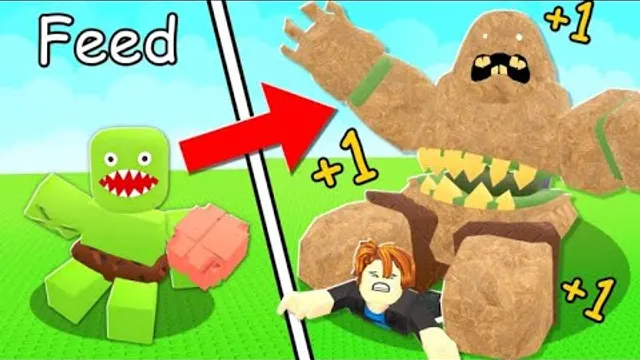
Knowing Fight Your Zombie controls saves more time than any single upgrade in the first week. Simple Bricks Zombies built the experience as a Roblox incremental simulator where most progress comes from repeating a tight loop: collect brains from brain tanks, feed your plot zombie, fight it for coins, and spend on upgrades. The UI is dense — tanks, machines, lucky blocks, and prestige menus all compete for clicks. This guide maps every important input on PC and mobile, explains what each action does in the core loop, and links to deeper guides when a control unlocks a new system.
Watch the embedded video mid-page for a live control walkthrough on a mid-game plot, then use the sections below as a reference card during your next session.
Joining and basic navigation
After launching from the Official Links Roblox page, your character spawns on your plot. Movement uses standard Roblox controls:
- PC: WASD to walk, mouse to look, click to interact with highlighted objects.
- Mobile: virtual joystick to move, tap to interact when a prompt appears.
Most incremental progress does not require long walks — you will spend the majority of time on the plot near tanks and the fight zone. If you need to reach event areas or walking zombies during limited updates, movement matters more; otherwise prioritize UI fluency over parkour skill.
Clicking and fighting the plot zombie
The primary coin faucet is fighting your plot zombie after feeding. During fight phases:
- Click or tap the zombie rapidly to deal damage and convert fed brains into coins.
- Some weapons or passes modify click value — see Upgrade Order and Game Passes for when damage upgrades beat more clicking.
- OP Auto Clicker (149 R$) automates this input legally; avoid third-party click scripts (Scripts Safety).
If clicks feel weak, the fix is usually more brains fed and higher zombie multipliers, not faster finger speed. Read Getting Started for the feed-before-fight rule.
Feeding brains
Brains collected from tanks must be fed to the zombie before fights pay well. Controls vary slightly by UI patch, but the flow is consistent:
- Open the feed panel or walk to the feed interaction point on your plot.
- Select brain type — Normal, Shiny, or Rainbow — or use bulk feed when unlocked.
- Confirm feed; watch the zombie stat bar rise before starting a fight cycle.
Higher rarities feed more efficiently per slot. See Shiny and Rainbow Brains for when to hoard versus dump Normal stock. Never let tanks cap and waste offline yield because you forgot the feed button — pair feeding with Offline Planner logout timing.
Brain tank interactions
Brain tanks passively generate brains on timers that continue while offline. On your plot:
- Place new tanks when slots unlock through progression or coins.
- Upgrade tank speed and capacity through shop menus tied to tank icons.
- Collect brains manually early game; machines automate collection later.
Tank UI often shows fill bars per slot. When a bar hits cap, production stops until you collect or a machine pulls output — that cap is why capacity upgrades rank high in Brain Tanks.
Shop, upgrades, and machines
The shop or upgrade panel is where coins become power:
- Zombie upgrades — coin multipliers and feed efficiency; buy these first per Upgrade Order.
- Tank upgrades — fill rate, capacity, rarity odds.
- Weapons — fight damage; third priority for most accounts.
- Machines — starter tools, advanced farms, synthesizers, and the Brain Melter covered in Machines.
Open machine build menus from plot placement zones. Drag or confirm placement depending on platform. Plan layout before buying — moving machines often costs coins.
Lucky blocks and event items
Lucky blocks use separate interact prompts, often near block spawners or event zones. Controls are typically:
- Open or roll with keys or tap when you hold a block item.
- Hoard during normal weeks; spend during 2x luck events for better tables.
For dedicated acquisition routes, read How to Get Lucky Block.
Prestige and Void menu
When progression slows, the prestige / Void UI appears in the main hub. Before confirming:
- Read keep-vs-lose lists carefully — controls here are irreversible for that run.
- Compare against Prestige and Void timing checklist.
- Check Changelog if a recent Saturday patch changed reset rules.
Prestige badges track depth — the game shows at least seven prestige levels on profiles. Higher badges mean more Void reruns, not better click technique.
Mobile-specific tips
Mobile players feel fight fatigue fastest:
- Use two-thumb tapping rhythm during coin phases.
- Pinch-zoom if UI scales poorly on small screens after an update.
- Consider OP Auto Clicker only after zombie stats exist — see Game Passes.
- Disable low-power mode during long grind sessions so Roblox does not throttle timers.
PC quality-of-life
- Bind attention to shop hotkeys if the game exposes them post-patch.
- Use a mouse with comfortable debounce for long fight sessions.
- Fullscreen Roblox reduces mis-clicks on adjacent UI panels.
Controls you should ignore
- Fake code paste fields — no redemption UI exists (Codes Hub, Fake Codes).
- Executor menus — ban risk; no official support.
- Walking macro scripts for plot progression — unnecessary for core loop; see Walking Zombies for legitimate NPC differences.
Quick reference table
| Action | PC | Mobile | Guides |
|---|---|---|---|
| Move on plot | WASD | Joystick | Getting Started |
| Fight zombie | Click | Tap | Upgrade Order |
| Feed brains | UI / interact | Tap prompt | Shiny Rainbow Brains |
| Collect tanks | Interact | Tap | Brain Tanks |
| Buy upgrades | Shop UI | Shop UI | Upgrade Order |
| Place machines | Plot menu | Plot menu | Machines |
| Open lucky block | Event interact | Tap | Lucky Blocks |
| Prestige | Void menu | Void menu | Prestige Void |
Related pages
- Getting Started — first-hour loop
- Brain Tanks — tank timers and offline growth
- Walking Zombies — plot zombie vs roaming NPCs
- Guides Hub — full index
- Updates Hub — when controls or UI change after patches
Controls are not the exciting part of Fight Your Zombie — but smooth inputs keep your brain pipeline and coin income from stalling between Saturday update windows and 2x luck weekends.
Frequently Asked Questions
Quick answers to the most common questions.
How do you fight the zombie in Fight Your Zombie?
Feed brains first, then click or tap the plot zombie during fight phases to earn coins. Auto Clicker pass automates clicks on supported platforms.
Does Fight Your Zombie work on mobile?
Yes. Use tap to interact, virtual joystick to move, and shop UI mirrors PC. Fight clicking is the main mobile fatigue point.
How do I feed brains?
Open the feed panel or use the plot feed interaction, select brain rarity, and confirm before fighting for best coin payout.
Do brain tanks need manual collection?
Early yes. Machines and advanced farms automate collection later. Uncollected capped tanks stop producing.
Are there keyboard shortcuts for upgrades?
Depends on patch. Most purchases use shop UI clicks. Check in-game after Updates change the interface.
Should I use scripts for auto click?
No. Use the OP Auto Clicker game pass or manual clicks. Executors risk bans per Scripts Safety.